
Technical Support




Note that most issues can be resolved by scrolling and reading through the above
"Issues and Fault Finding" page
User system support is done via email only
Other than general questions,
the method requires that you send in CP generated shot videos or screen shots
via email attachments.
Send to us at:

Shot accuracy issues or shots not being detected
In order to resolve these issues, we'll require you to send in the shot replay video for analysis
Shot Replay Videos
Important !
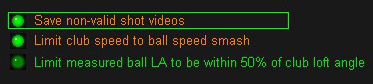
If your system is not detecting a valid shot, click the option
"Save non-valid shot videos" ON
in the CP Setup Panel
Retry a shot and make note of the shot Video number being saved.
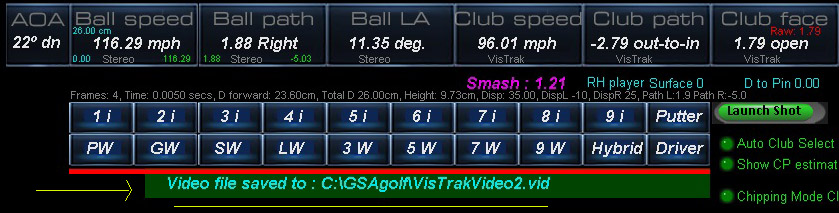
After a shot, the shot video file name and number is displayed in the CP's main panel
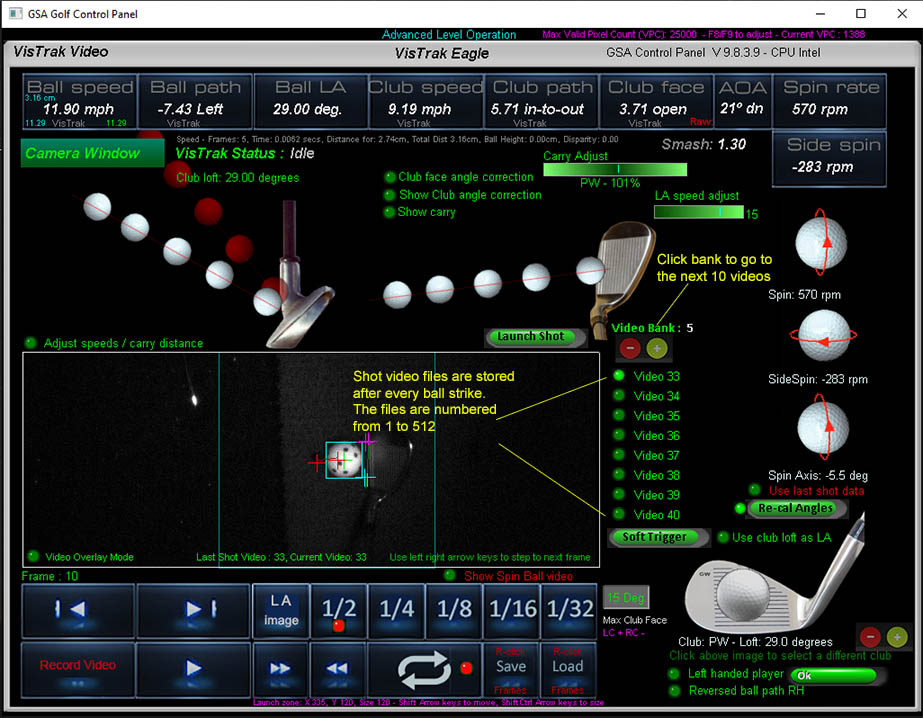
The Vistrak system stores a shot video after every shot.
These shot videos can be re-called by clicking on the video number.
GSA Golf Technical support requires the user to send us a copy of one or more of these shot videos
as an email attachment for analysis when issues occur.
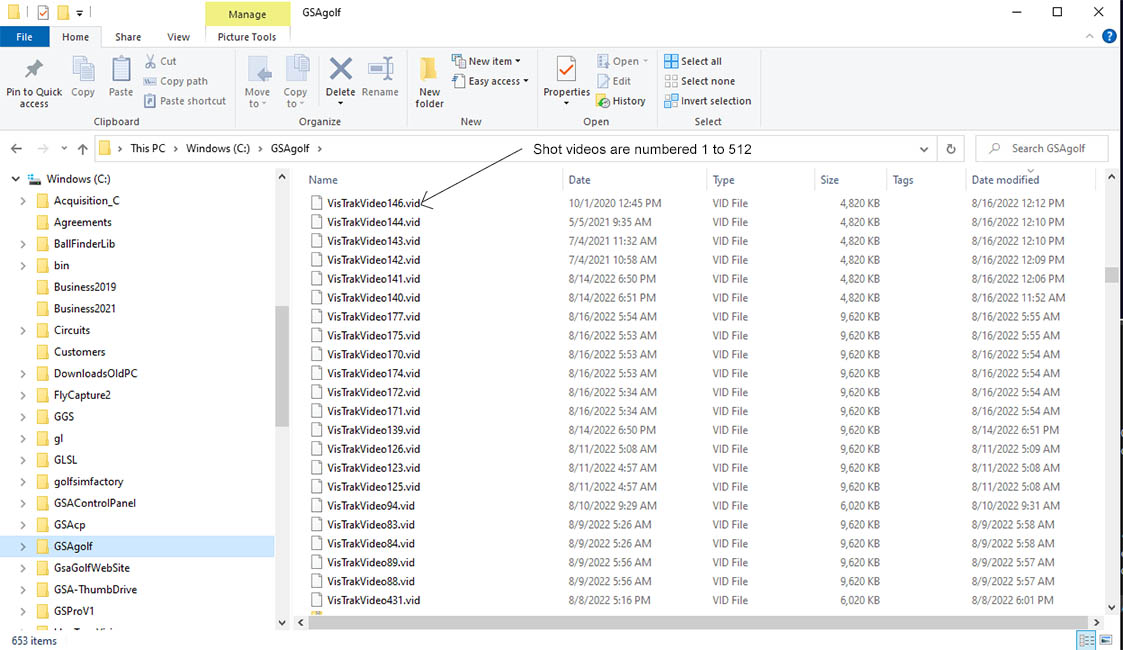
The shot video files are stored in the C:\GSAgolf folder on your PC
Note:
The shot videos also include all your setup parameters, so we can reproduce your issues exactly as you are having.
Screen shots
In order to resolve any other issues,
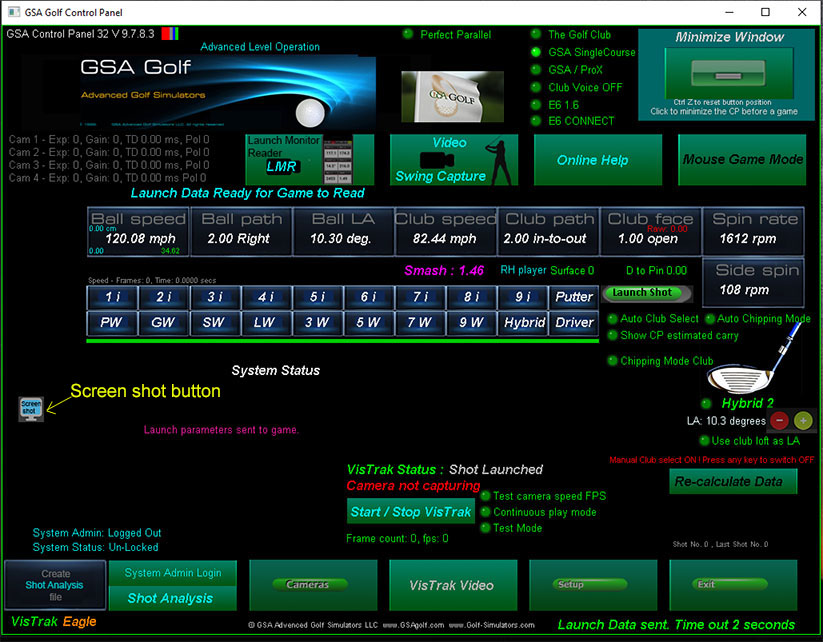
we'll require you to send in screen shots of the main panel, setup and camera panels and shot videos.
How to make Screen shots
Camera setup videos
If your system is not working at all, then you will have to send us a camera setup video.
How to make camera setup videos
1. Place ball on the mat on the usual hitting position and place a club behind it
2. Either click on the "Start/Stop VisTrak" button from the CP's main panle or go to the camera panel and Video Stream Mode so that frames are captured
3. Go back to the Main panel and click on the “Create Shot Analysis File” button at the bottom far left of the panel
( as shown in the above image).
4. Note the number of the VisTrak Video file created and send it to us as an email attachment.
How to make Screen shots
GSA Golf Technical support often requires the user to send us a control panel screen shots
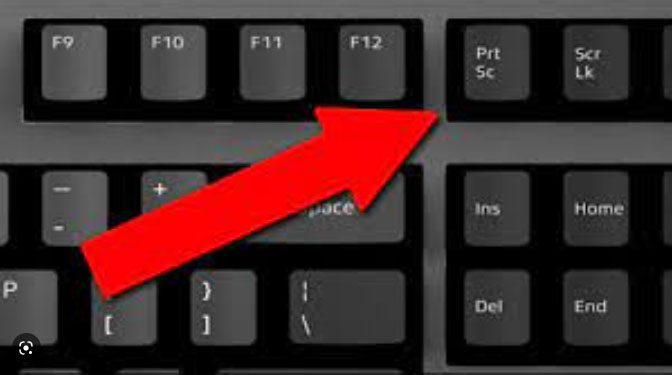
To make a screen shot, press the PrtSc button on your keyboard.
Note: some CP screens have a Screen Shot button too.
This places a copy of the screen image into the PC's Clipboard.
You can then paste the image into the Paint application and save it.
Alternatively
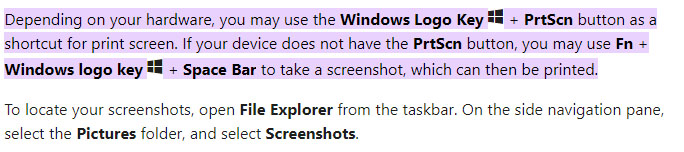
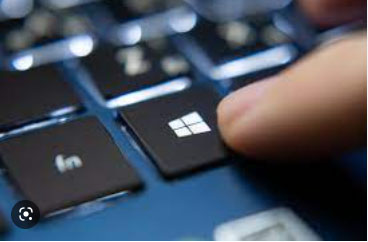
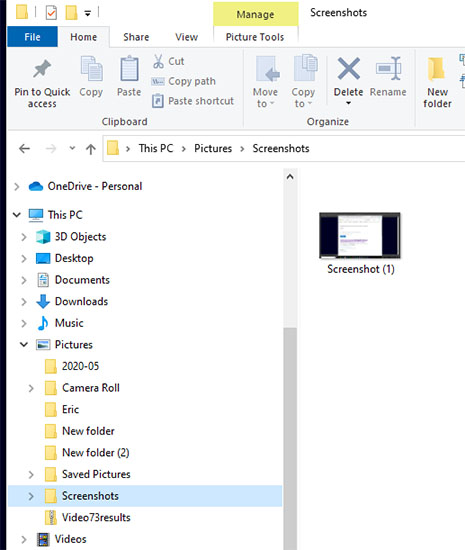
You can then either paste or attach the image in an email to us for analysis
 Home
Home Simulators
 Cameras
 Software
 Enclosures
 ProTee
 Installation
 Business